
1. Find out what is actually limiting the PC
Start by describing when the computer feels slow: startup, multitasking, video editing, games or one particular application. A CPU upgrade may not help if the real issue is a full drive, limited memory, high temperatures or software.
Write down the exact computer or motherboard model, CPU, RAM type and capacity, graphics card, storage and power supply. Windows Task Manager and System Information can help; the exact motherboard model may require a diagnostic tool or checking the device label.
2. Check every compatibility detail
For a CPU, verify the socket, supported processor list and required BIOS version on the motherboard maker’s support page. For memory, check the DDR generation, supported capacity, open slots and motherboard limits. The processor, board and RAM must all be compatible.
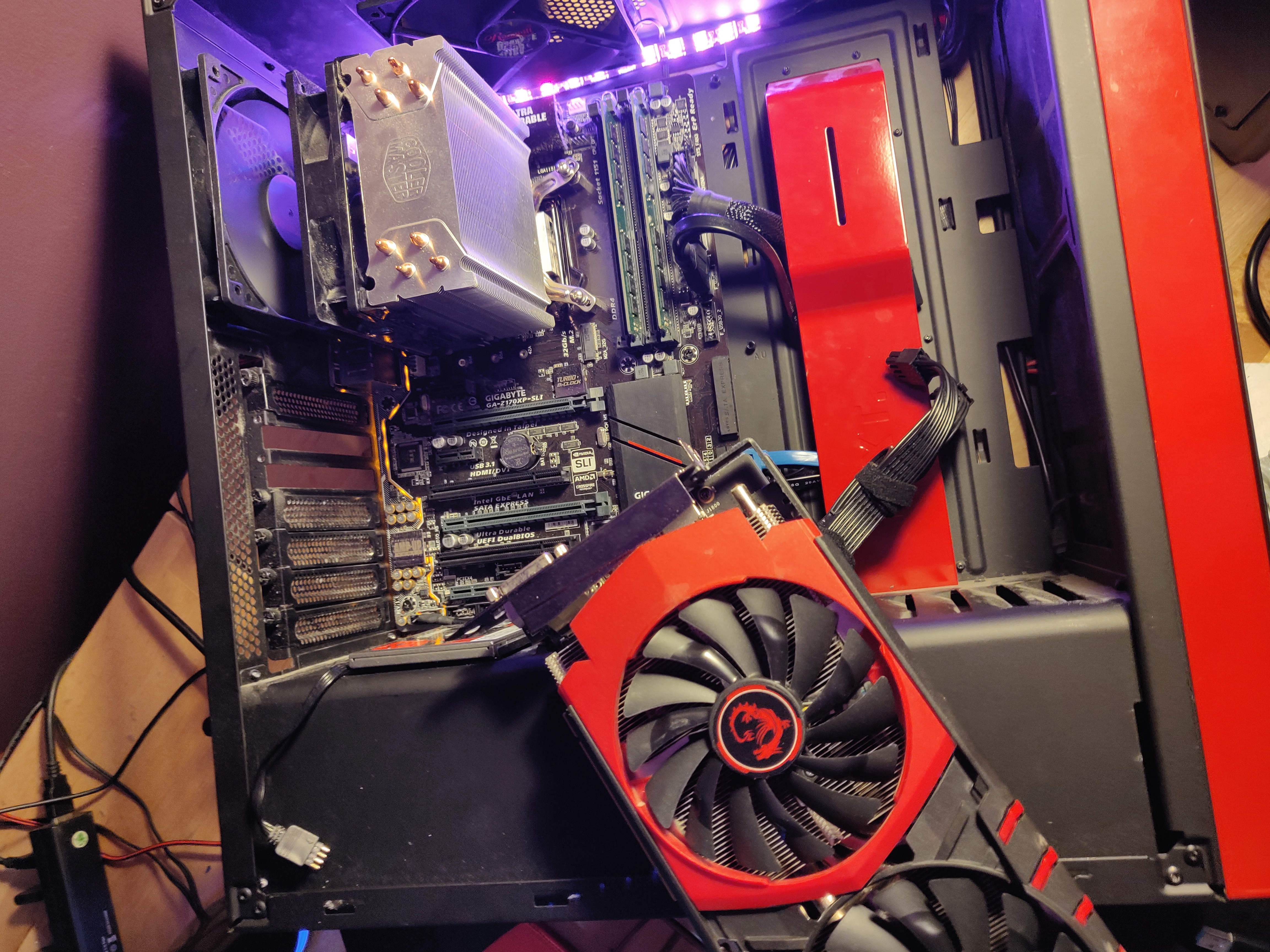
For a graphics card, check case clearance, power connectors and the recommended power supply. For an SSD, verify the interface, form factor and available slot. Also check cooling and airflow; physical fit alone does not prove compatibility.
3. Choose the upgrade by benefit and budget
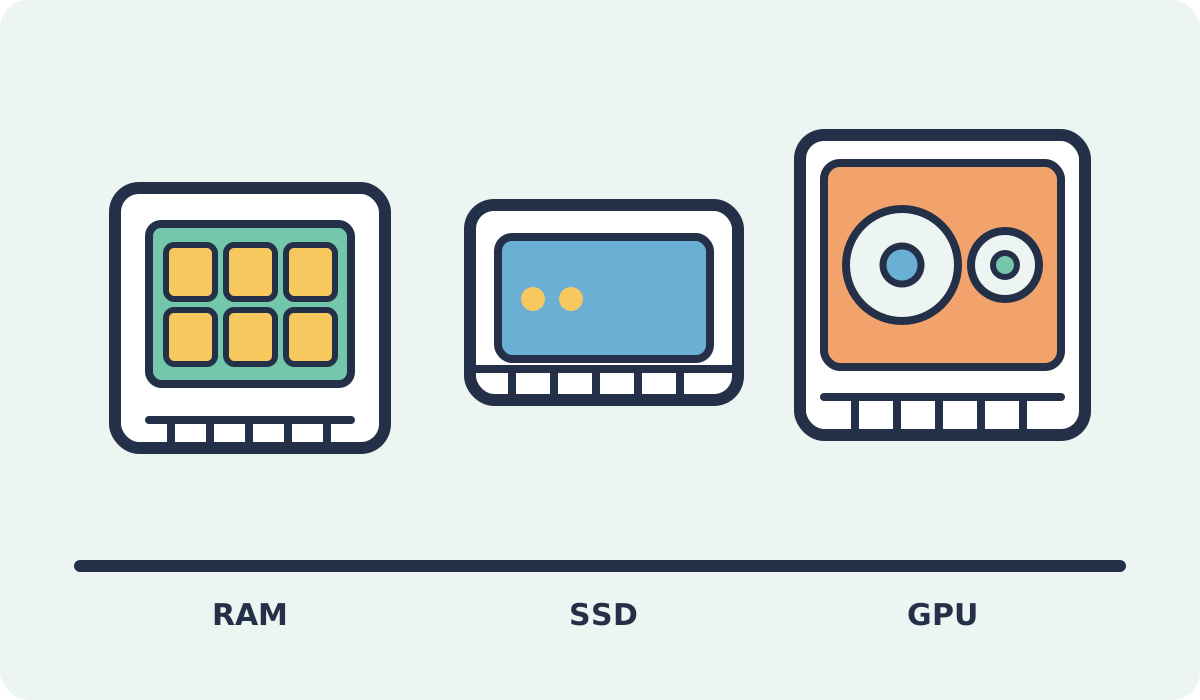
Prioritize the component limiting your actual workload. Replacing a slow hard drive with a compatible SSD can improve everyday responsiveness; adding RAM helps when memory use is genuinely high. A graphics-card upgrade only helps applications that can use it.
Compare the cost of a single part with replacing the platform. Sometimes it makes sense to keep the current PC for everyday tasks and plan a new system later. Confirm the exact parts list and any labour cost before buying.
4. Back up, install and test
Back up important files and confirm you can access required accounts and licences before opening the computer. Shut it down, unplug power and follow the manufacturer’s service manual. Reduce electrostatic-discharge risk and never force a component into place. Never open the power supply; hazardous voltages can remain inside.
After installation, check that cables and components are seated correctly. On the first boot, confirm the system detects the new hardware, install required drivers and test stability and temperatures. If compatibility or installation is uncertain, have the configuration checked before buying.