
1. Start with the connection and floor plan
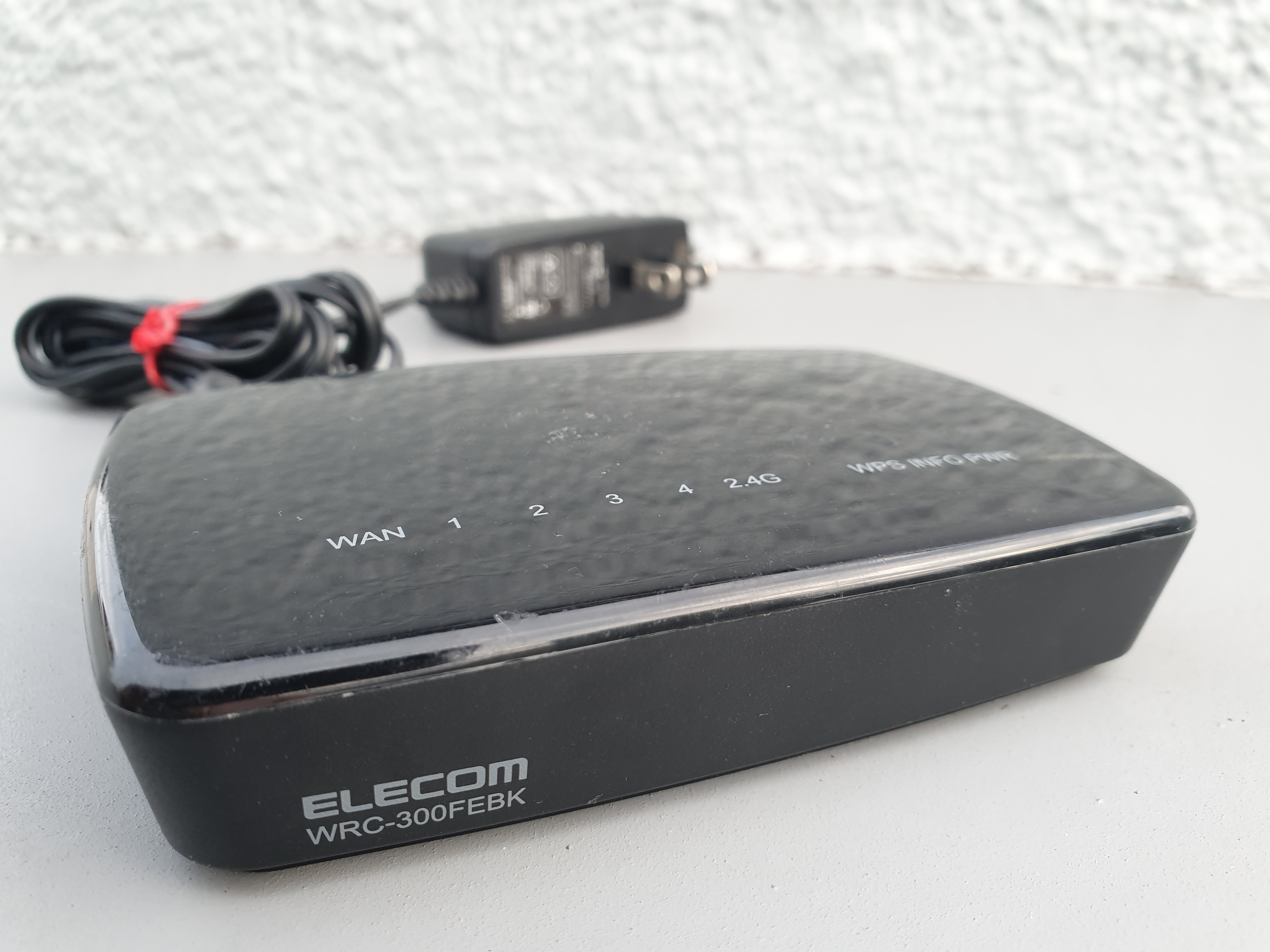
First find out what type of internet connection you have and what equipment your provider requires. The router must match the connection and plan speed; some setups also need a modem or fibre terminal. Before buying, check whether the existing provider device can be put into bridge mode.
Coverage depends more on the layout, floors, walls and device locations than on a large number printed on the box. Note where you use Wi-Fi, how many devices connect at once and whether you can run Ethernet to another access point.
- Check your connection type and provider requirements.
- Note floors, thick walls and areas with weak signal.
- Check whether wired connections are available for extra access points.
2. One router, an access point or mesh?
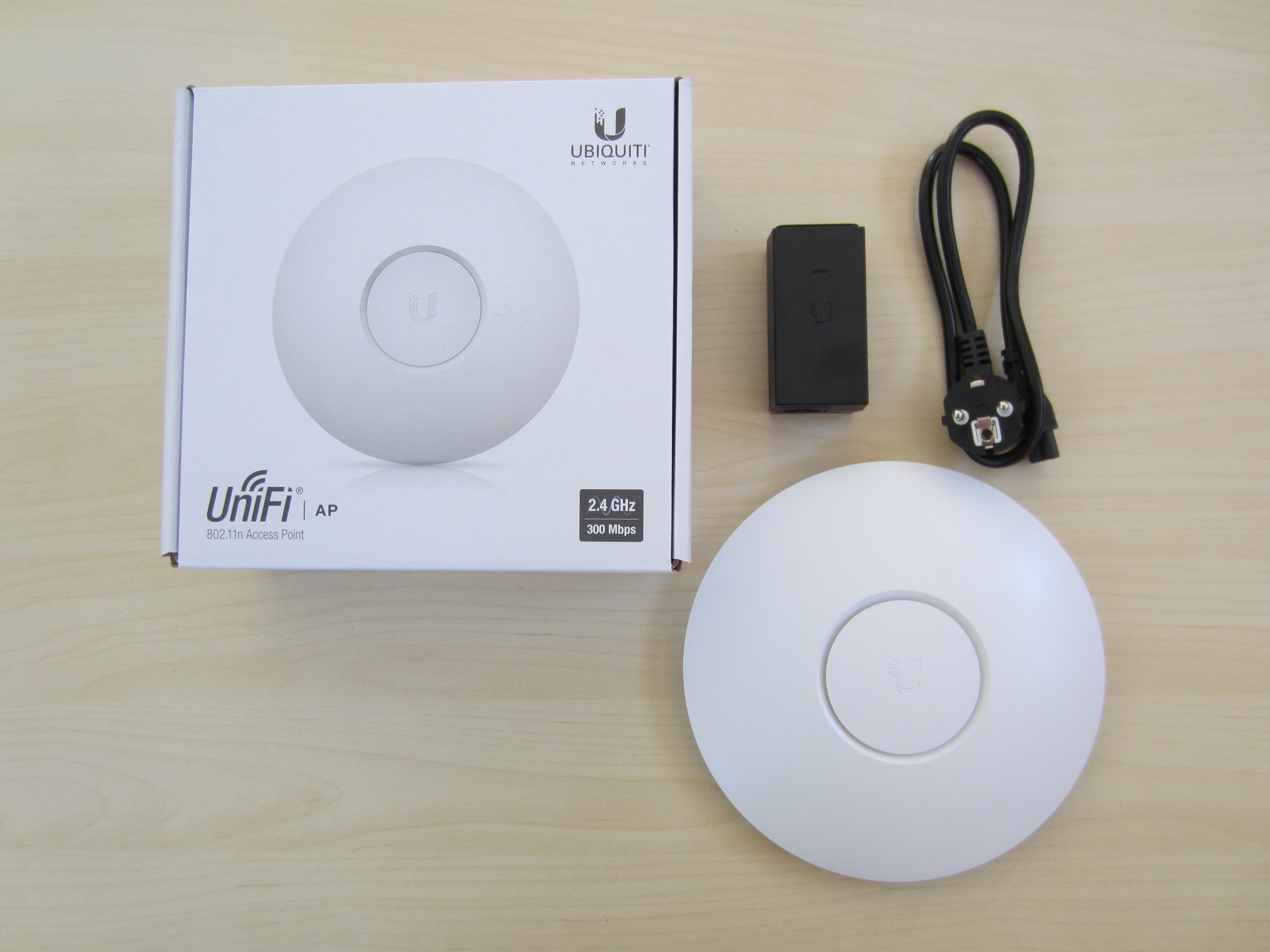
A well-placed router may be enough for a smaller flat. A larger home may benefit from an additional access point, ideally connected by Ethernet. Mesh can help where cables are not practical, but performance depends on node placement and the quality of the wireless backhaul.
Wi-Fi 6 or a newer standard is useful when your devices support it and your needs justify it. A newer standard alone will not fix poor placement, interference or a slow internet connection.
3. Secure the initial setup
Install a current stable firmware update and replace the default administrator password with a unique strong one. Use WPA2-AES or WPA3 according to device compatibility. Turn off WPS if you do not need it, and leave remote administration disabled unless you have a clear reason to use it.
A guest network can separate visitors from your main devices. If the router supports a separate IoT network, verify that its firewall rules actually isolate devices; a different Wi-Fi name by itself is not network isolation. Store the configuration and credentials securely.
4. Guest Wi-Fi QR codes and printed stands
You can create a separate guest Wi-Fi network for visitors. A QR code made from its network name and password lets a phone offer to join after scanning; the exact steps depend on the phone and router. The code contains access credentials, so never use the password for your main network and remember that visitors can copy the code.
A small card or desk stand can display the QR code with a short connection note. This works best with a guest network that is isolated from home devices. Custom 3D printing can include a simple stand or holder for the QR card.
I’m interested in a Wi-Fi QR stand5. Test coverage room by room
Check connection stability and speed in the places where you use the network. A speed test next to the router does not show how Wi-Fi performs through several walls. Routers usually work best in an open, central and elevated location, away from metal and sources of interference.
If speeds are low even near the router, the issue may be the internet service or provider settings. If only distant rooms have trouble, a wired access point may help more than replacing the main router with a larger model.